
Sign-in & Two-Factor Security
KTO requires two-factor authentication (2FA): after your password, sign-in asks for a short code that proves it's really you. 2FA becomes required seven days after you create your account — until then you'll see a reminder, after that the app takes you to setup before anything else.
Setting up
Open the profile icon in the navigation bar, then Two-factor authentication:
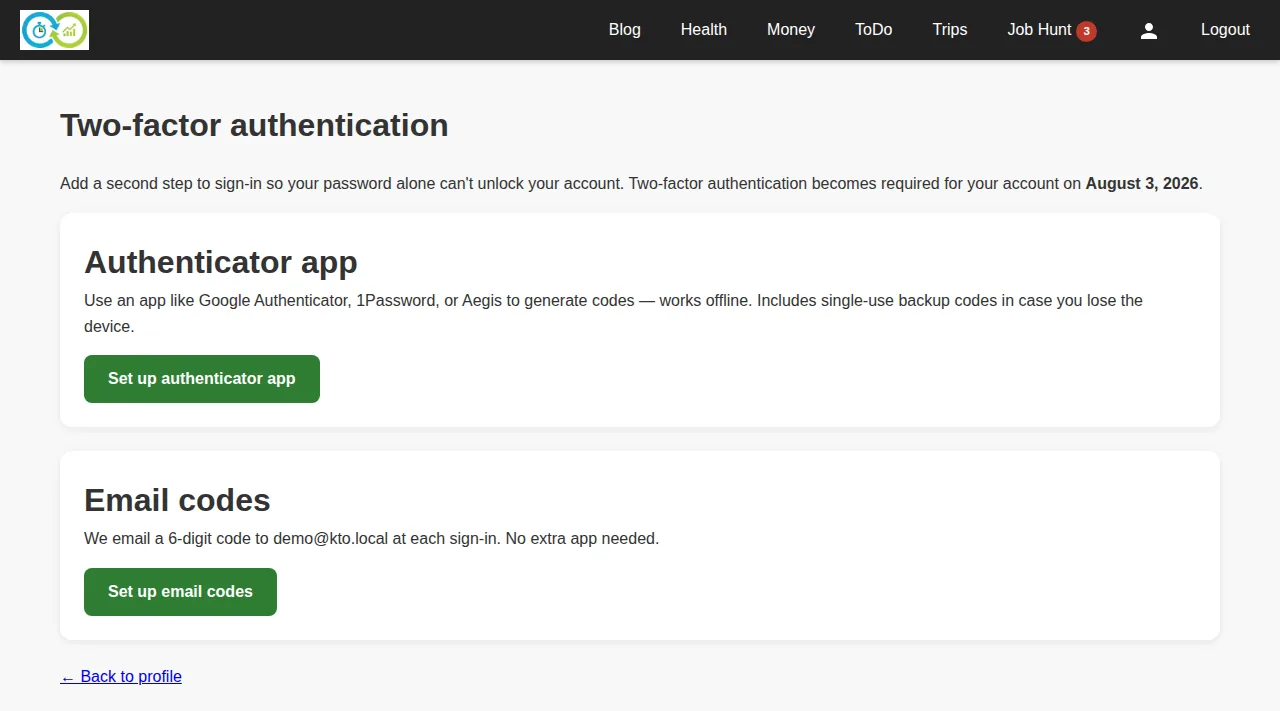
Two methods are available — set up either (or both):
Authenticator app
Works offline with any TOTP app (Google Authenticator, 1Password, Aegis, …).
- Choose Set up authenticator app. A QR code appears.
- Scan it with your app, which starts showing 6-digit codes.
- Enter the current code to confirm (required). Done — sign-ins now ask for the current code from your app.
Setting up the app method also generates backup codes: single-use codes that get you in if you lose the device. Store them somewhere safe (a password manager). You can regenerate the set any time — required: your current password — which invalidates the old set.
Email codes
No extra app: each sign-in emails you a 6-digit code, and you enter it to finish signing in (required). Codes expire quickly; the challenge page can resend one.
Signing in with 2FA
After your password is accepted, enter the code from your authenticator app (or a backup code), or the code that was emailed to you. That's it.
If you're locked out
- Lost your authenticator device? Use a backup code to sign in, then regenerate your 2FA from the security page.
- No backup codes and no device? If email codes are set up, use those. Otherwise contact support — for your protection, 2FA can't be bypassed from the sign-in page.