
Money: Import, Reconciliation, Reports & Search
Tools for getting data into Money, keeping it honest, and understanding it.
On this page: QIF import · Bank sync · Reconciliation · Reports · Search · Export
Importing from your bank (QIF)
Most banks can export transactions as QIF files. Open Import in the Money section:
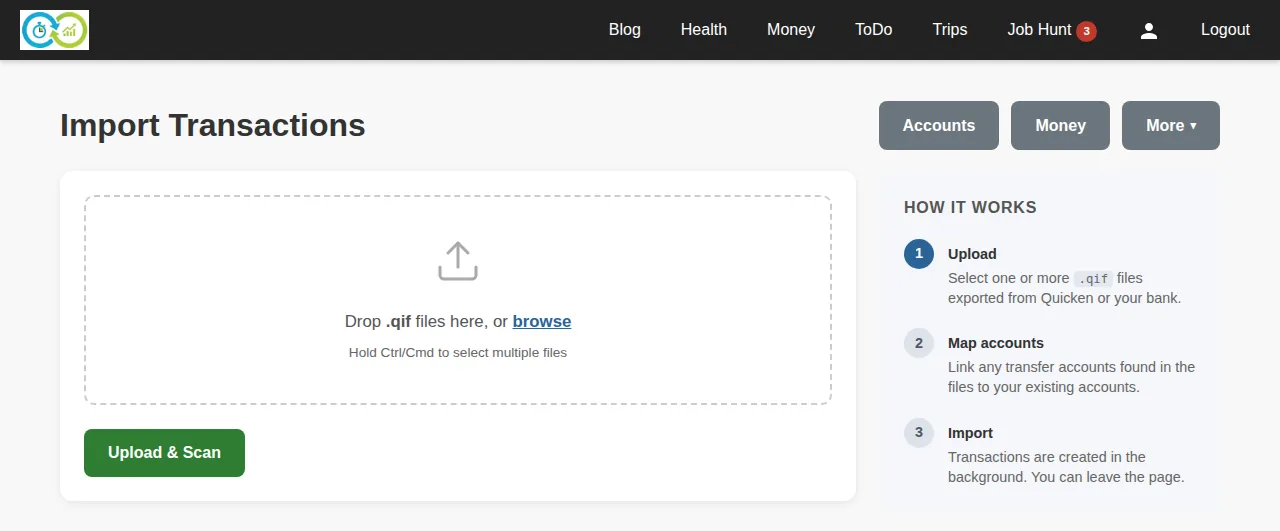
- Upload — drop one or more
.qiffiles on the upload zone (or click browse). Required: at least one QIF file. - Map accounts — for each account found in the files, tell KTO which of your accounts it is, or create a new one on the spot.
- Preview and confirm — review what will be imported. Transactions KTO has already seen are detected and skipped, so re-importing an overlapping export won't create duplicates.
- Import — the transactions land in the ledger, categorized where the file says so.
Bank sync (FinAuto)
With Financial Automation ($10/month, on the subscription page) an account can pull its transactions straight from your bank through Plaid instead of importing files.
- Open the account's Edit page and click Link to your bank in the Bank sync section. Plaid's window walks you through signing in to the bank; KTO never sees your bank password.
- Map each bank account to one of your KTO accounts (checking, savings, credit and loan accounts; investment accounts are not synced). An account can be backed by at most one bank account.
- The first sync starts right away. It reaches back to the day after the account's last completed reconciliation, or its first transaction if it was never reconciled — an empty account takes what the bank offers (about 90 days). Accounts you map later start from the day you map them.
After that, every night around 2 am your local time new posted transactions land in the ledger (pending card charges wait until they settle). Each account is synced at most once a day; Sync now on the account page pulls immediately, at most once every 5 minutes.
- Synced rows carry a synced badge. If you had already typed the same transaction (same account and amount, within a day), the sync adopts your row instead of adding a duplicate — it gets a confirmed badge and keeps your payee, category and memo.
- New rows get the category you last used for that payee, otherwise Uncategorized — review them like any import.
- Transfers between two linked accounts (a card payment, a savings sweep) are recognised and recorded as one transfer.
- Delete a synced row and it stays deleted; later syncs will not bring it back.
- If the bank asks you to sign in again, the account page says so and offers Reconnect. Unlink disconnects the bank and keeps everything already imported.
- When the subscription ends, syncing stops; bank connections are removed 30 days later unless you renew.
Reconciliation
Reconciliation checks an account against a bank statement, the same way as a paper checkbook. Start one from the Reconciliation page — pick the account, then:
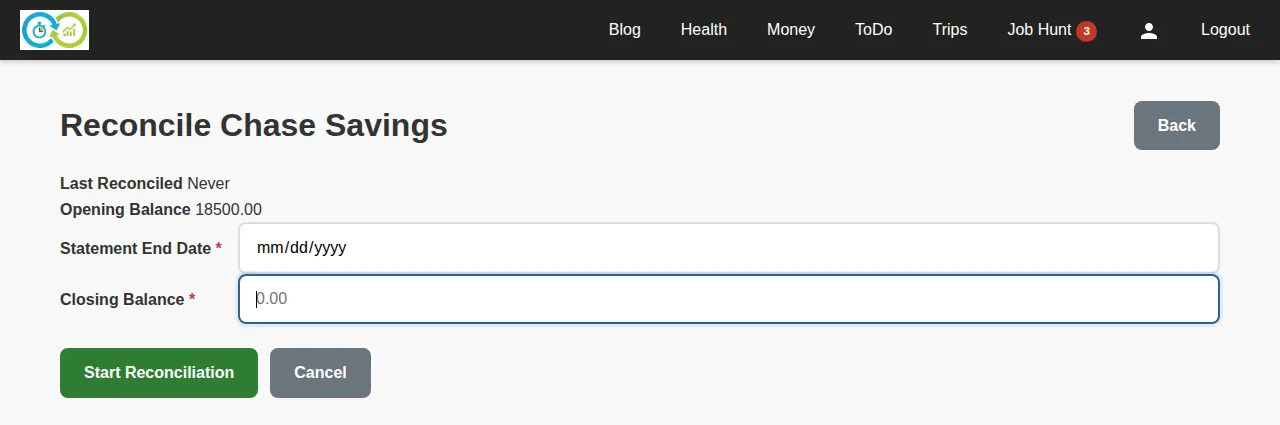
Required: statement end date and the statement's closing balance.
Then tick each transaction that appears on the statement. The running difference shows how far the ledger and statement disagree; when it reaches zero, finish the reconciliation.
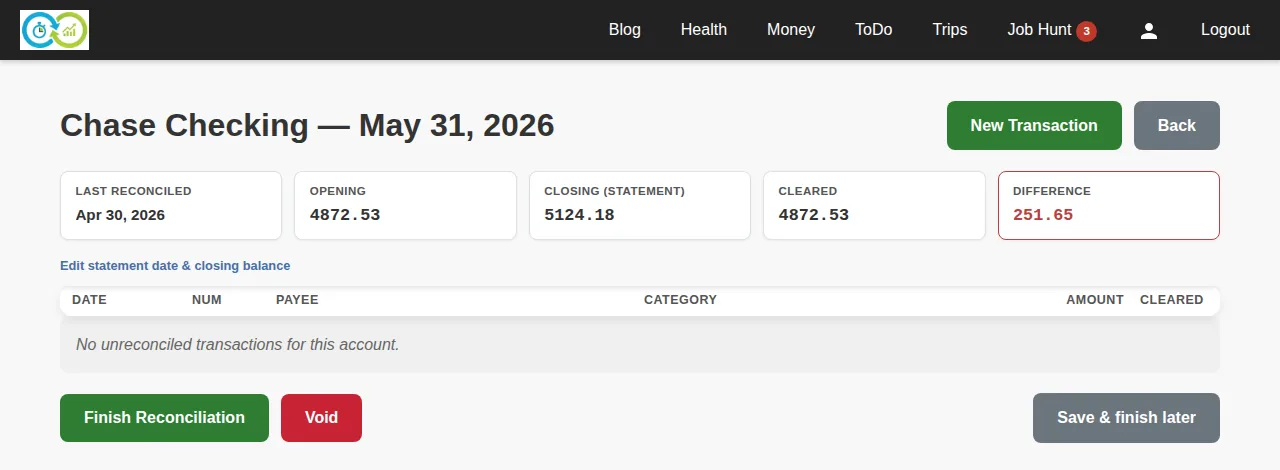
You can save and finish later, add a missing transaction mid-reconcile with New Transaction, or void the reconciliation to abandon it. Finished reconciliations lock in a "last reconciled" marker per account.
Reports
The Reports page charts your spending and income: pick a date range (or a preset like "this year"), a dimension (category, payee, month, …), and a chart type. Filters narrow to matching memos, transaction numbers, or amounts. A useful report can be saved by name and re-run later. Report filters are all optional — an empty form reports on everything.
Search
Search finds transactions by text, amount range, date range, status, and more — all filters optional. AI search accepts a plain-English question ("how much did we spend on restaurants in March?") and answers from your ledger.
Export
The Export page downloads your transactions as files, per account. Pick the accounts you want; format details are on the page. For a full-account data export (every section, not just Money), see Your Account & Data.